
KDP Metric — User Guide
One extension, free with a Pro upgrade built in · Last updated: 10 June 2026
KDP Metric is a Chrome side panel that turns any Amazon book page into clear, honest niche research. It's one extension: the free tools work forever, and a licence key unlocks the Pro tools inside the same app. Sections marked PRO require Pro.
This is more than a click-by-click manual. It is also a strategy guide for authors who want to understand how Amazon book niches behave, how KDP metadata works in practice, and how to use KDP Metric to make stronger publishing decisions.
1. Installing & pinning
- Install KDP Metric from the Chrome Web Store (it's free).
- Click the jigsaw Extensions icon in Chrome's toolbar, then the pin next to KDP Metric so its icon is always visible.
- That's it — no account, no sign-up. You're ready to research.
2. Opening the side panel
Go to any Amazon book search, best-seller list or product page, then click the KDP Metric icon and choose Open side panel. The panel docks to the right and updates automatically as you browse.
If you open the panel before visiting Amazon, it shows a short "open an Amazon search to begin" message with a one-click shortcut to Amazon's Best Sellers — a quick way to see the panel working on real data.
3. Panel tour
On a search or best-seller page the panel groups its tools into four numbered tabs, in the order you'd naturally work:
- 1 · Research — with sub-tabs:
- Results — every book on the page, scored and sortable.
- Niche Grade — the A–F grade, market stats and competition lights.
- Coach — plain-English guidance on what to aim for.
- Category Scout PRO — the on-device AI assistant (see section 12).
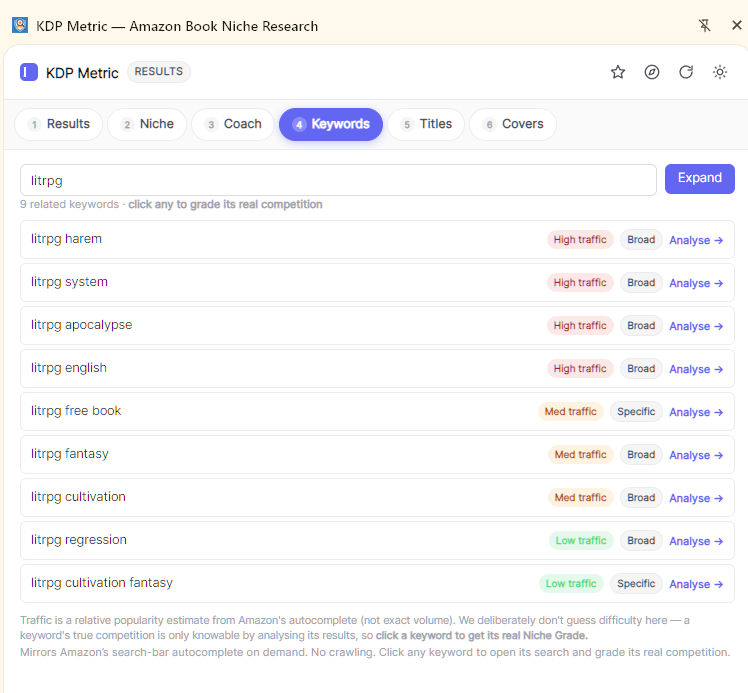
- 2 · Keywords — related search phrases from Amazon autocomplete, click-to-analyse.
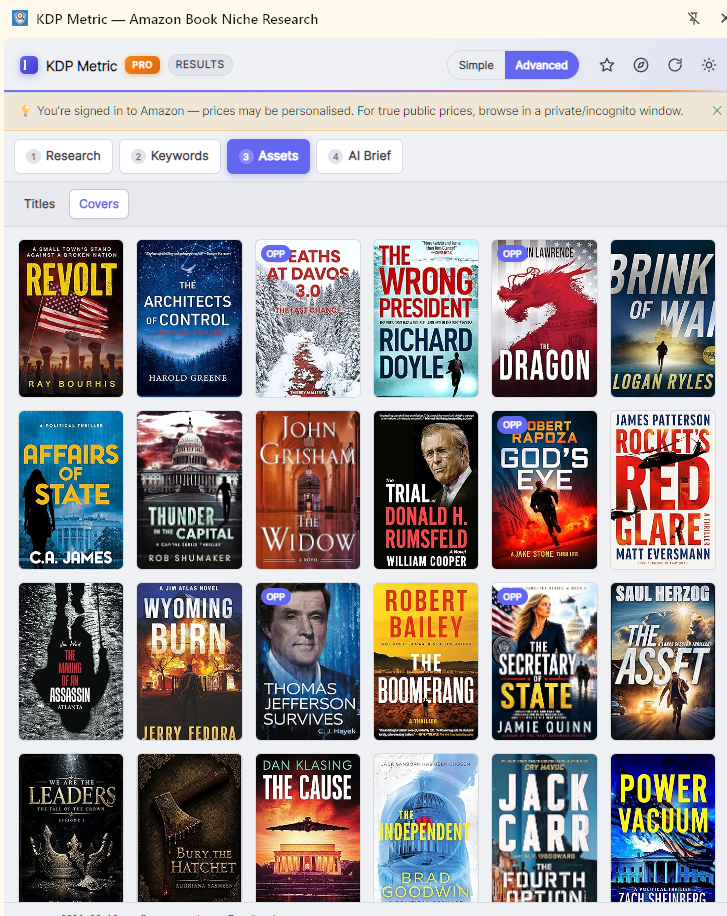
- 3 · Assets — with sub-tabs Titles (Title Optimizer + word cloud) and Covers (competitor cover wall).
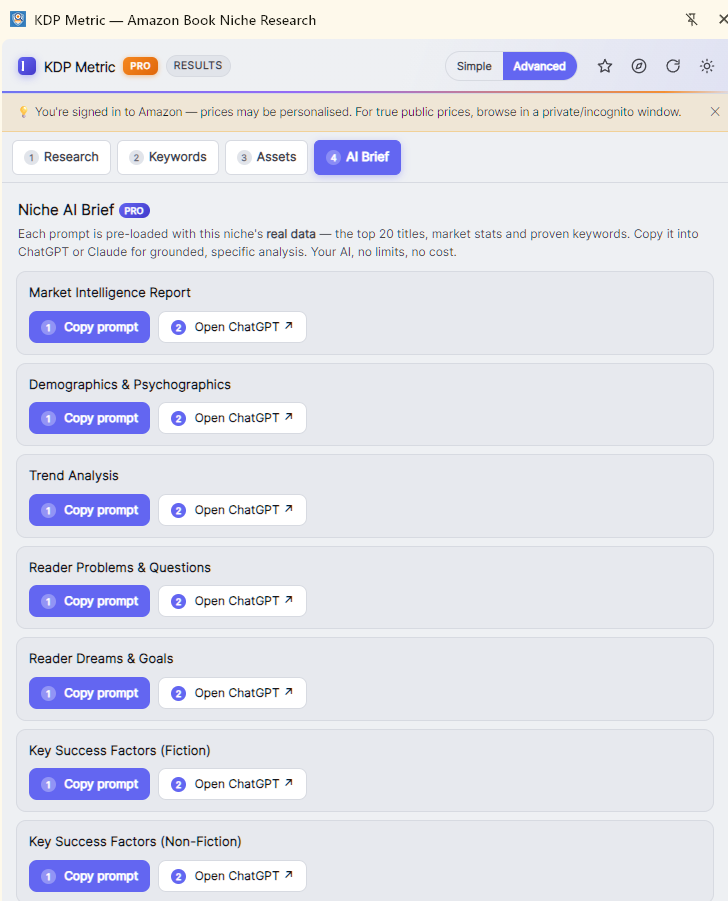
- 4 · AI Brief PRO — data-loaded prompts for ChatGPT or Claude.
On a book's product page the panel switches to the single-book view (section 8). Pro users also get a Simple ↔ Advanced toggle in the header — Simple shows just the verdict and your next move; Advanced shows everything.
4. Researching a niche
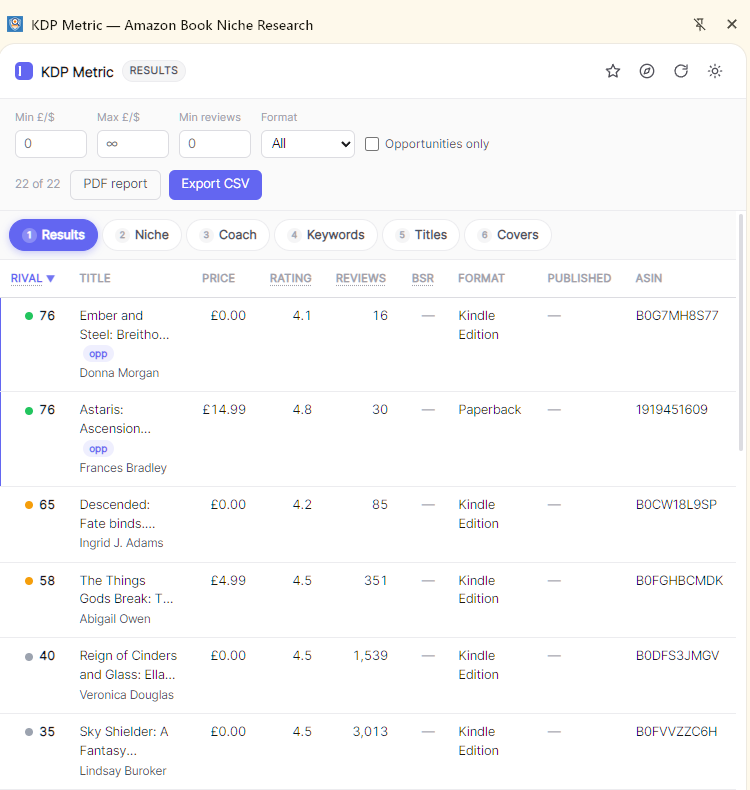
Search Amazon for a keyword (e.g. "cozy mystery") or open a best-seller list. The Results tab scores every book for how beatable it is — the Rival score — and you can sort or filter to push the soft targets to the top. Numbers are heat-tinted: green = weaker / more beatable, red = strong / entrenched.
The goal is not just to find a keyword with traffic. The goal is to find a keyword where readers are clearly buying, but the top books are not impossible to dislodge. In practice that usually means balancing three things at once: visible demand, moderate review strength at the top, and titles/covers that still leave room for a cleaner, sharper offer.
- Start with the obvious phrase your reader would type into Amazon.
- Sort the Results tab to find books with weaker Rival scores and lighter review weight.
- Open the Niche Grade, Coach and Keywords tabs together — never judge a niche from one number alone.
- Click into 2-3 narrower keyword ideas and compare whether the leaders are actually easier to beat.
5. Reading the Niche Grade
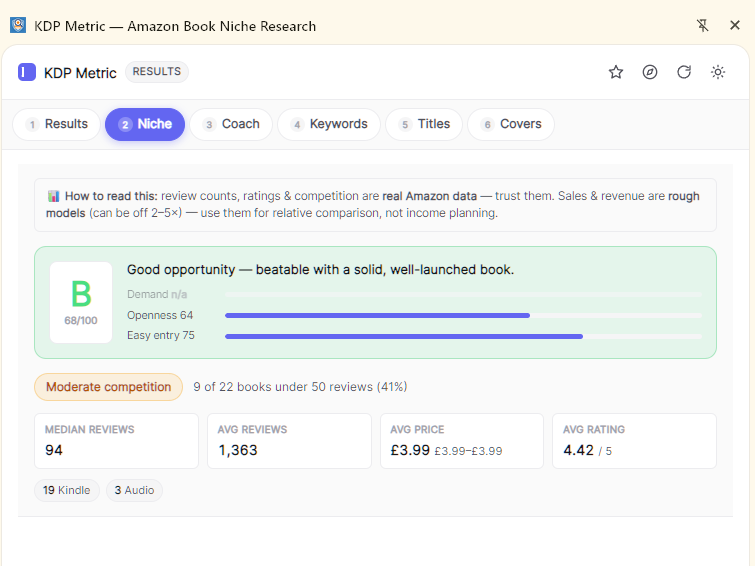
The Niche Grade sub-tab gives the headline verdict: an A–F Niche Grade blending three sub-scores — Demand, Openness (competition) and Easy entry. A and B are genuinely soft niches; C/D are contested; F is brutal. The market strip shows average price, median reviews, average rating and more.
Read the grade like a market summary, not a promise. A strong grade means "this lane is worth serious attention"; it does not mean every book in that lane will succeed. Your cover, packaging, blurb, sample quality and category fit still decide whether you convert the opportunity.
- Demand: are readers actively buying in this space, or just browsing?
- Openness: are the leaders packed with heavy review moats, or is there room for movement?
- Easy entry: could a well-positioned new book realistically get traction here without years of brand history?
6. Strategy Coach
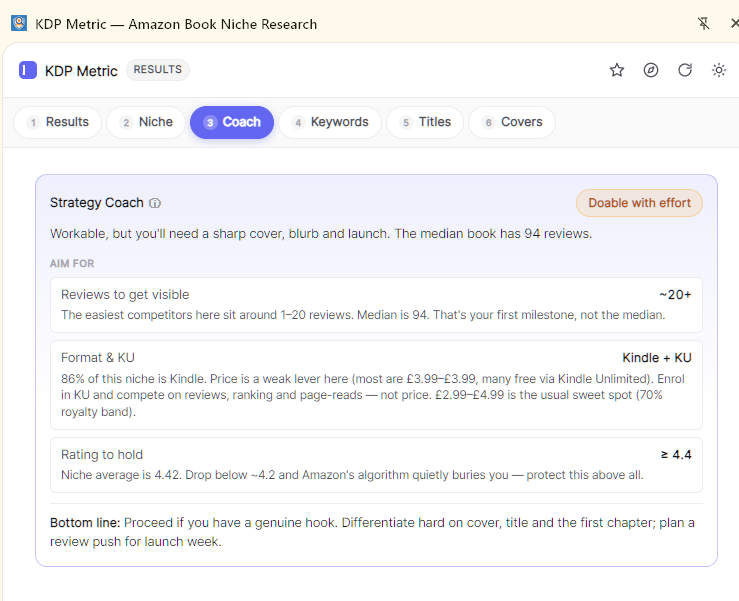
The Coach sub-tab turns those numbers into a plan: the review count to target, the price band (or a Kindle Unlimited strategy for Kindle-heavy niches), the rating to hold, and a clear "enter or avoid" call. It's a deterministic expert system — no AI, no guesswork, no API cost.
Treat Coach as your translation layer between raw market data and actual publishing decisions. If it says the niche needs a high rating, low review count ceiling and aggressive KU positioning, that is your brief for the product page and launch strategy — not just trivia.
- Use the target review count as a reality check for how much social proof you need before scaling ads.
- Use the price band to judge whether your intended format, length and perceived value make sense in that niche.
- Use the enter/avoid call to protect your time. Passing on a bad market is a win.
7. Keywords, Titles & Covers
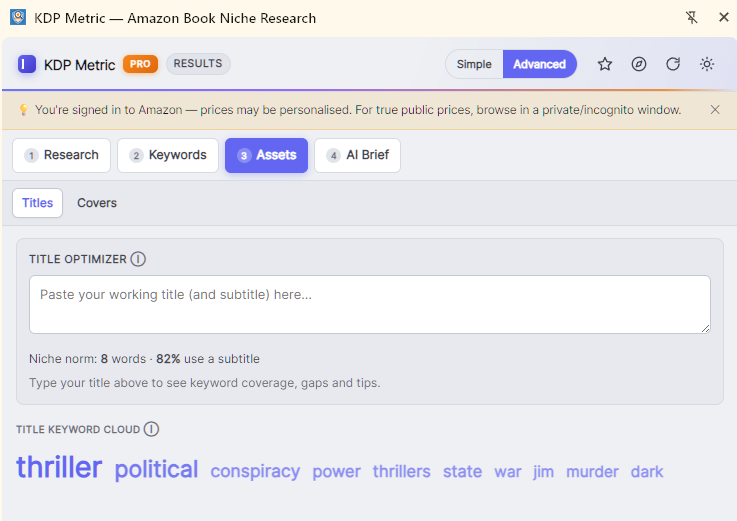
The Keywords tab pulls related phrases straight from Amazon's own autocomplete, each tagged with relative traffic and click-to-analyse so you can check its real competition. Under Assets, the Titles sub-tab has the Title Optimizer — paste your working title to see keyword coverage, the proven niche words you're missing and length vs the norm — plus a word cloud of recurring hooks across the niche. The Covers sub-tab lays out every competitor cover on the page in one grid, so you can design something that stands out.
Keyword best practice
- Think like a reader, not a marketer. Use phrases a customer would genuinely type.
- Favour specific phrases over single vague words. Short 2-3 word phrases are often stronger than isolated words.
- Use keywords to describe theme, trope, setting, audience, tone, problem solved or format intent.
- Search your candidate phrase on Amazon before committing to it. If the results are irrelevant, the phrase is weak.
- Avoid other authors' names, other book titles, brand or trademark names, misleading claims, "bestseller", "free", or unrelated phrases — these breach KDP's metadata rules.
- Do not waste keyword space repeating words already doing work in your title/subtitle unless the phrase itself changes meaning.
Title and subtitle best practice
- Your title should read like a real book title first and an SEO asset second.
- Your subtitle should clarify the promise, angle or audience — not just dump extra keywords.
- Keep the wording aligned with your cover. On KDP, mismatches between cover text and metadata create friction and can trigger problems.
- Avoid promotional language like "bestselling", "free", or exaggerated claims in metadata — KDP prohibits them in titles and keywords.
8. Analysing one book
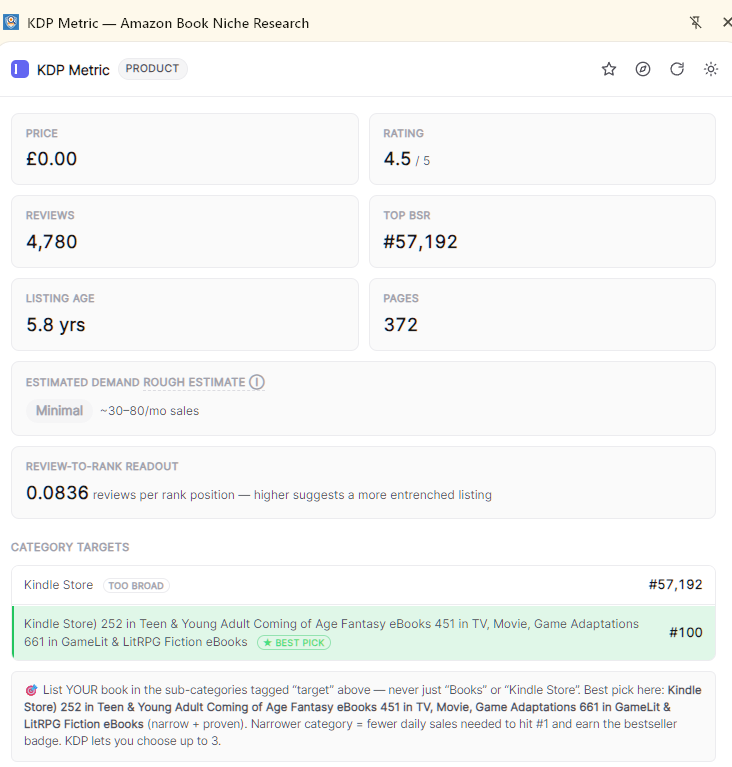
Open any product page and the panel switches to the book view: format-aware price, self-publisher detection, estimated demand, and — where rank is visible — sales-to-rank figures. You'll also see:
- Category targets — the book's sub-categories with a "best pick" flag and the daily sales it takes to reach #1.
- Sales & BSR trends — crowdsourced rank/price history drawn as sparklines (builds over time).
- Book Tracking — pin any book to watch its BSR & price from your Tracked list.
- Readers also bought — adjacent books to discover nearby niches.
- Category Scout AI PRO — the chat assistant lives here too (see section 12).
This is where KDP Metric stops being just a niche tool and becomes a packaging tool. Use the single-book view to audit whether a successful book is winning on price, category placement, review depth, series momentum, cover language or some combination of all five.
How to study a competitor properly
- Check whether the book is winning because of raw demand in the niche, or because it has an unusual moat such as a huge review base or a strong series.
- Compare its price and review count against the niche averages. Outliers matter.
- Look at the categories and "Readers also bought" titles to see the neighbourhood the book is really competing in.
- Track books over time before copying a conclusion from one day of data.
9. Discover (trending)
The compass button in the panel header opens Discover — one-click links to Amazon's Movers & Shakers, Hot New Releases, Best Sellers and Most Wished For, analysed instantly when they load.
This is one of the best ways to spot movement early. A niche that looks average in ordinary search results may show fresh demand, new packaging patterns or new sub-niches when you inspect trending lists.
10. Settings & privacy
Click the KDP Metric icon for quick settings: highlight opportunities, opportunity thresholds (max reviews / min rating), theme, and an optional "Contribute anonymous data" toggle (off by default). Once Pro is active you'll also find Report branding (your logo and name for PDF reports) and Update intelligence here.
11. Pro features PRO
Simple & Advanced mode
Pro adds a Simple ↔ Advanced toggle in the panel header. Simple mode shows a calm summary — the Niche Grade, a single "your next move", and the essentials. Advanced is the full tabbed experience. Free users always get the full layout.
Book Audit & Recovery Plan
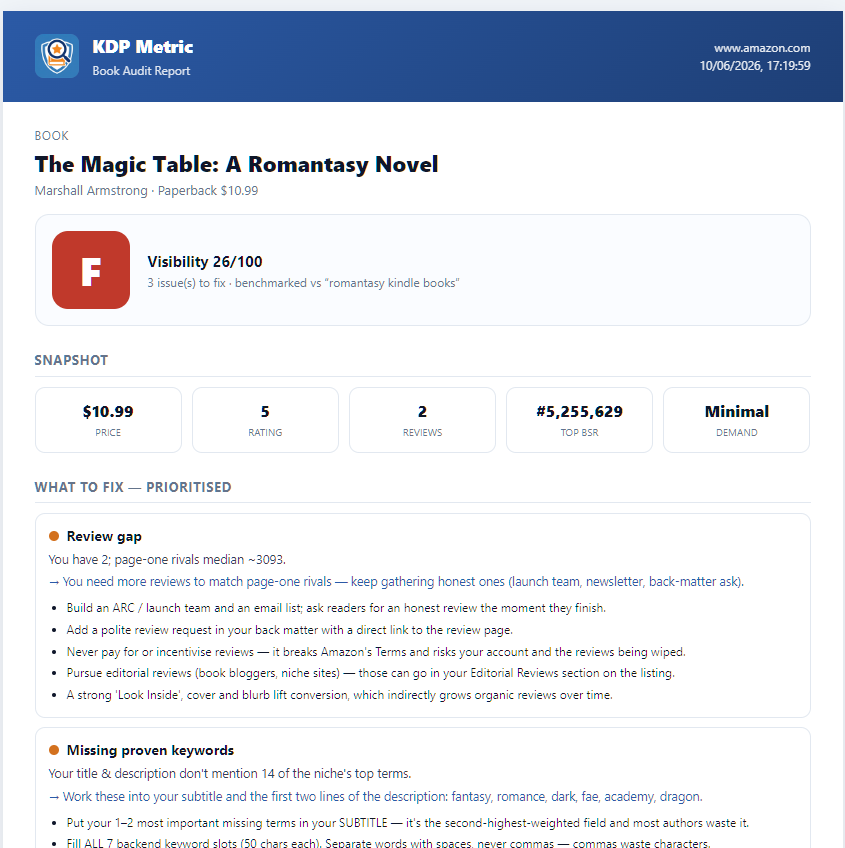
Open your own published book and Pro gives it a Visibility grade (A–F) and a prioritised, worst-first list of findings — exactly why it's stuck. Each fix has a step-by-step playbook and a tickable recovery plan: check items off as you do them, watch the progress bar, and always see your "next move". This is the headline Pro tool for improving an existing book.
Keyword & Metadata Builder
Pro builds seven ready-to-paste backend keyword slots plus subtitle terms from live Amazon autocomplete and your niche's proven terms — each ≤50 characters, one angle per slot, filtered against KDP's metadata rules, and never repeating words already in your title. Copy each slot straight into KDP.
If the live suggestions run thin, click ✨ Suggest with AI to have the on-device AI propose extra candidate phrases. AI suggestions are marked with a badge and pass through the same KDP-safety filter as everything else — but treat them as candidates: sanity-check each one with a real Amazon search before using it.
Niche AI Brief
The AI Brief tab gives you expert prompts pre-loaded with your niche's real data — top competitor titles, market stats, proven keywords and your grade. Copy a prompt, open ChatGPT or Claude, and get grounded analysis using the AI subscription you already have. KDP Metric sends nothing to any AI service itself; you bring your own.
Category Hunter
On a search or best-seller list, Category Hunter reads the actual top books' review counts to score how entrenched the leaders are — an honest Easy / Medium / Hard read on your realistic route to a #1 bestseller badge.
White-label PDF Reports
Export a clean, branded report — niche or single-book — with the grade, strategy, competitors, keywords and your audit fixes. Add your own logo and name in the popup's "Report branding" section, then export and Save as PDF. Useful for your own records, or to hand to a client if you offer publishing services.
Always-current intelligence
Pro's audit advice and keyword rules update from our servers without waiting for a store release — hit Update intelligence in the popup to pull the latest guidance.
12. Category Scout AI PRO
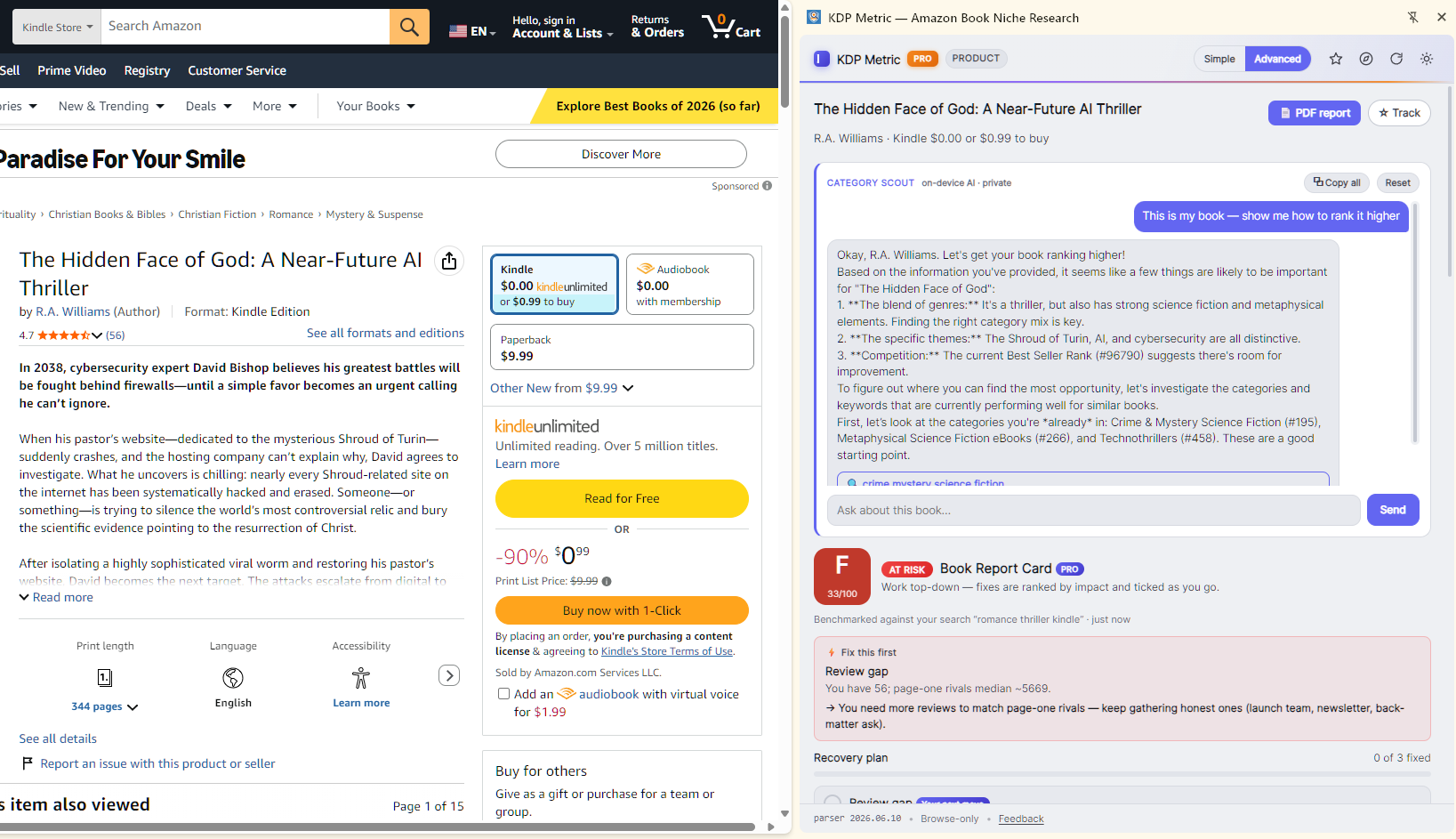
Category Scout is a private AI assistant built into the panel. It runs entirely on your device using your browser's built-in AI — your conversations never leave your computer, there are no API keys and no usage fees. You'll find it in two places: on any book's product page, and as the Category Scout sub-tab under Research.
Starting a conversation
- Open your book's Amazon product page with the side panel open.
- Scroll to the Category Scout card. It already knows the book — title, categories, price, reviews, rank — from the page itself.
- Pick a starter prompt — "This is my book — show me how to rank it higher", "Find me a better category to target" or "Who am I really competing against?" — or type your own question.
How the guided research works
Scout doesn't guess from the book page alone. It suggests specific Amazon searches to run — for candidate categories, keywords or competitor sets. When you run one of those searches with the panel open, the results are fed back into the conversation automatically as evidence, and Scout's advice updates to match what the data actually shows. When it has seen enough, ask it to write up its final recommendation.
Saving what matters
- Every reply has a copy button; the header has ⧉ Copy all to copy the whole conversation as readable text.
- The chat is session-only: it clears when the side panel closes. Copy anything you want to keep before you close it.
- Reset starts a fresh conversation about the same book.
Requirements & availability
- Needs a recent, up-to-date desktop version of a compatible browser with built-in AI, and a reasonably modern computer (the AI model needs several GB of free disk space).
- The first use may trigger a one-time background download of the browser's AI model — this can take a few minutes. The panel tells you when it's getting ready.
- If your device or browser doesn't support built-in AI, the panel says so clearly. Everything else in Pro works regardless.
- Availability of built-in browser AI is controlled by your browser vendor, not by us — see our terms.
13. Buying & activating Pro
Pro is a one-time purchase — $59 lifetime licence at the launch price (regular $118), no subscription. To unlock it:
- Click Get Pro in the panel's upgrade banner, in the popup, or on kdpmetric.com. Checkout is handled securely by Lemon Squeezy, our merchant of record.
- Your licence key arrives by email straight after purchase.
- Paste the key into the upgrade banner's key field (or the KDP Metric PRO box in the popup) and click Activate.
- Pro unlocks instantly — the banner disappears and the PRO chip appears in the header.
One licence activates on up to three devices. Switching machines? Use Deactivate on this device in the popup to free a slot first. Activation needs an internet connection so the key can be verified; after that, Pro keeps working with an occasional background re-check.
14. KDP rules & best practices that matter most
KDP Metric helps you read the market, but Amazon KDP still rewards clean, accurate metadata and clear reader positioning. The best use of this tool is to make better publishing decisions before you upload or update your book. The points below reflect KDP's published policies — but policies change, so always check the current KDP help pages before acting on a borderline case.
Metadata should be accurate, not stuffed
KDP's guidance is consistent on this point: titles, subtitles, keywords and categories should accurately describe the book, not manipulate the store. If a phrase is misleading, unrelated or promotional, don't use it.
- Match your title, subtitle, series info and cover text.
- Use the subtitle to sharpen the promise or audience, not to bolt on random search terms.
- You get 7 backend keyword slots of up to 50 characters each. Separate words with spaces; don't waste characters on commas or repeats.
- Never use other authors' names, other book titles, brand or trademark names you don't own, time-sensitive claims ("new", "on sale"), or subjective claims ("best", "bestselling", "free").
- Choose categories for fit, not vanity — you can select up to three.
Play the reviews game by the rules
Reviews are the slowest, most valuable asset a listing has — and the area where breaking Amazon's rules does the most damage. Amazon prohibits paying for reviews, incentivising them, or review-swapping with other authors; accounts and review histories get wiped for it.
- Build an advance-reader (ARC) / launch team and an email list; ask readers for an honest review the moment they finish.
- Add a polite review request in your back matter with a direct link to the review page.
- Pursue editorial reviews (book bloggers, niche sites) — those can go in the Editorial Reviews section of your listing.
- Never pay for, incentivise, or trade reviews — and never ask for a positive review, only an honest one.
Know KDP's AI-content disclosure rule
KDP requires you to declare AI-generated content — text, images or translations created by an AI tool — when you publish or update a book, even if you edited it afterwards. Content that is your own writing, merely refined or checked with AI assistance, is currently treated as AI-assisted and doesn't require disclosure. Answer the publishing questions truthfully; misdeclaring is a policy violation.
Choose categories for relevance first
Categories are your shelf placement, not a hack. A smaller category can be very effective if the book genuinely belongs there, but the wrong category may bring the wrong clicks and weak conversion.
- Use KDP Metric to find the niche you fit best, then choose categories that support that positioning.
- If a book spans multiple angles, lead with the category most likely to convert the right reader.
- Remember that category strength and keyword phrasing work together. Good metadata is a system, not separate boxes.
Write a description that sells the click
Keep descriptions simple, compelling and professional: a strong opening, a clear promise, and only enough detail to create interest. Don't bury the hook under explanation.
- Lead with the core promise, problem, premise or emotional hook.
- Use short paragraphs or simple formatting so the page scans well.
- Reflect the same audience and angle you targeted in your keyword and title research.
- Avoid messy copy-paste formatting when editing descriptions in KDP.
Use KDP Metric before you change a live listing
- Analyse the niche keyword you want to target.
- Check 5-10 direct competitors, not just one standout winner.
- Refine your title/subtitle and backend keywords around the most consistent phrases.
- Check whether your categories, price and packaging fit the lane you've chosen.
- Only then update KDP metadata — and track whether rank, click appeal or category position improves over time.
Common mistakes to avoid
- Choosing a niche because it looks popular, while ignoring how entrenched the top books are.
- Stuffing keywords into titles or subtitles until they stop sounding like a real book.
- Using broad generic terms instead of specific reader phrases.
- Copying a successful competitor's visible wording without understanding why that book is actually winning.
- Making metadata changes without first checking whether the niche itself is worth entering.
- Changing several things at once and then not knowing which change helped.
15. FAQ
Does KDP Metric work on all Amazon stores?
Yes — all major marketplaces (.com, .co.uk, .ca, .de, .fr, .es, .it, .co.jp, .com.au, .in, .sg, .ae).
Are the sales/revenue numbers exact?
No. They're rough, modelled estimates from public rank data — great for relative comparison, not income predictions. KDP Metric is strongest for choosing a niche, not forecasting earnings.
Why is a panel empty or a number missing?
Amazon changes its pages often. Refresh the Amazon page; if it persists, an update usually follows quickly. Some data (like sales-to-rank) only appears where Amazon shows a rank.
Do I need Pro?
No — the free tier is a complete research tool. Pro is for authors who want to audit and fix their own books, build metadata faster, and use the AI tools.
Why doesn't Category Scout AI work on my machine?
It relies on your browser's built-in AI, which needs a recent desktop browser, a reasonably modern computer and several GB of free disk space for a one-time model download. If your setup doesn't support it the panel will say so — every other Pro feature still works. Availability is controlled by the browser vendor; see the terms.
Is my Category Scout conversation saved anywhere?
No. It runs on your device and is cleared when the side panel closes. Use the copy buttons or ⧉ Copy all to keep anything important.
Can I trust what the AI tells me?
Treat it as a well-briefed assistant, not an oracle. It's grounded in the page data it's shown, but it can still be wrong — verify recommendations against the Niche Grade, Coach and Results tabs before changing a live listing.
What does the Pro licence include?
Lifetime use of the version you buy, plus 12 months of major updates and support, on up to three devices. After that it keeps working with no subscription. See the Terms.
I bought Pro — where's my key?
It's emailed to you by Lemon Squeezy (our merchant of record) immediately after checkout. Check spam if it hasn't arrived within a few minutes, or email us.
KDP Metric is an independent tool and is not affiliated with, endorsed by, or sponsored by Amazon. "Amazon", "Kindle" and "KDP" are trademarks of Amazon.com, Inc. or its affiliates, used here only to describe compatibility. KDP policies are summarised in good faith and may change — always confirm against the official KDP help pages.